GVA HMI - Human Machine Interface
The GVA HMI (gva-qt6-hmi) is the core display rendering application for DEF STAN 23-009 compliant
military vehicle Human Machine Interfaces. It provides a fully functional display with all eight
functional areas, DDS integration, and support for third-party external applications.
Overview
The GVA HMI application provides:
- DEF STAN 23-009 Compliance: Full implementation of GVA display layout and functional areas
- Eight Functional Areas: SA, WPN, DEF, SYS, DRV, STR, COM, BMS with dedicated screens
- DDS Integration: Real-time alarm display, registration services, and device management
- External App Support: Third-party applications can render to WPN, STR, and BMS screens
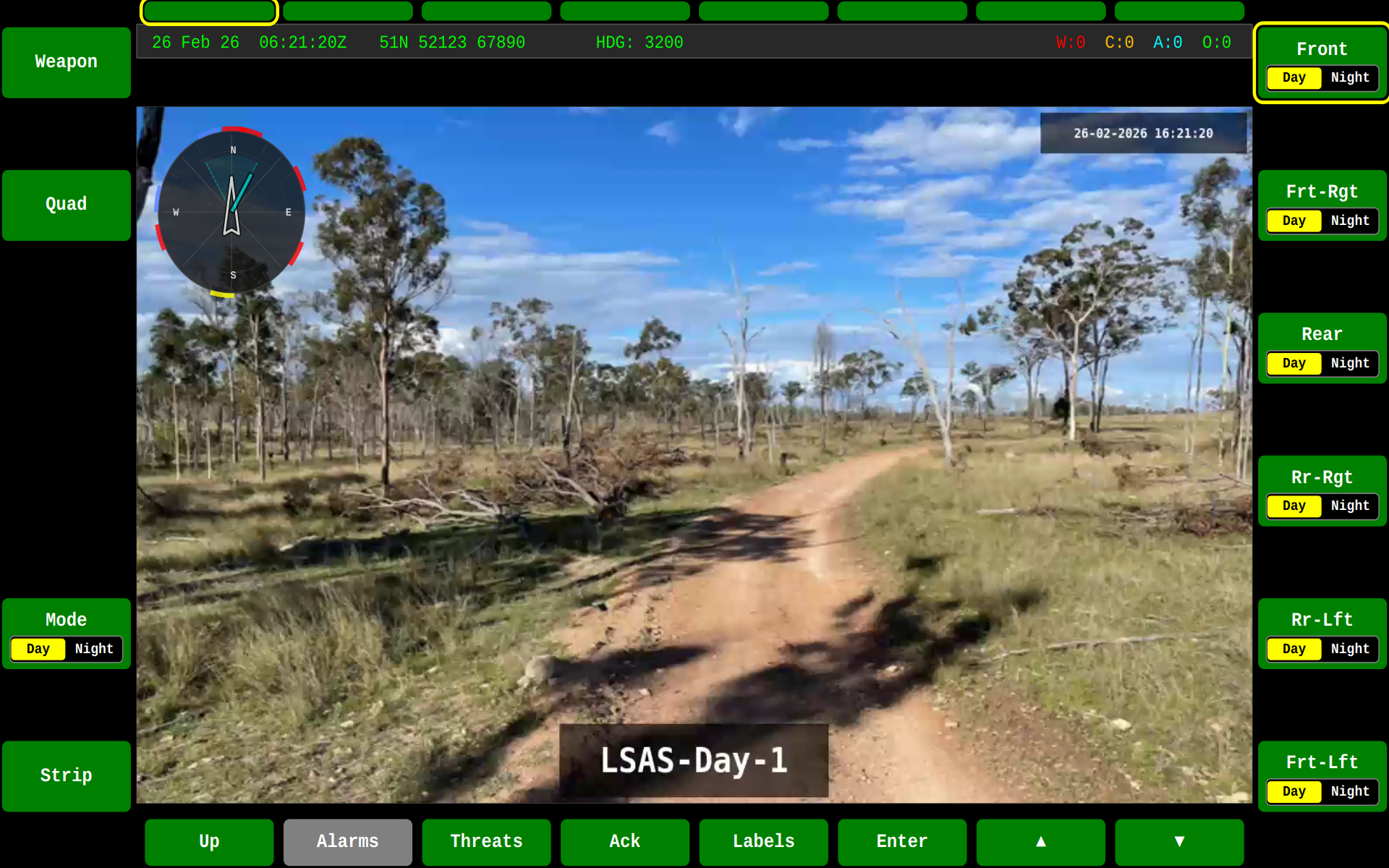
- Video Playback: Camera/video stream display on SA (Situational Awareness) screen
- Widget Rendering: Custom Qt widgets for PPI, vehicle status, speedometer, and more
Running the HMI
Basic Usage
# Start the HMI on default SA screen
./build/bin/gva-qt6-hmi

# Start on a specific functional area
./build/bin/gva-qt6-hmi --area=4    # Start on SYS screen
./build/bin/gva-qt6-hmi -a 5        # Start on DRV screen

# Play video on SA screen
./build/bin/gva-qt6-hmi /path/to/video.mp4
Command Line Options
| Option | Description |
|---|---|
-a, --area <N> |
Start in functional area (1=SA, 2=WPN, 3=DEF, 4=SYS, 5=DRV, 6=STR, 7=COM, 8=BMS) |
<video> |
Video file to play on SA screen (positional argument) |
-h, --help |
Display help information |
--version |
Display version information |
Functional Areas
The HMI implements all eight GVA functional areas accessible via the control buttons:
| Area | Key | Description |
|---|---|---|
| SA | F1 | Situational Awareness - Video/camera feed with PPI overlay |
| WPN | F2 | Weapons - Extensible screen for weapon systems |
| DEF | F3 | Defensive Aids - Countermeasures display |
| SYS | F4 | System - 3D vehicle status and configuration |
| DRV | F5 | Driver - Speedometer, RPM, and camera feed |
| STR | F6 | Set To Role - Vehicle-specific role configuration |
| COM | F7 | Communications - Radio and comms management |
| BMS | F8 | Battlespace Management - Extensible screen for mapping |
SA Screen
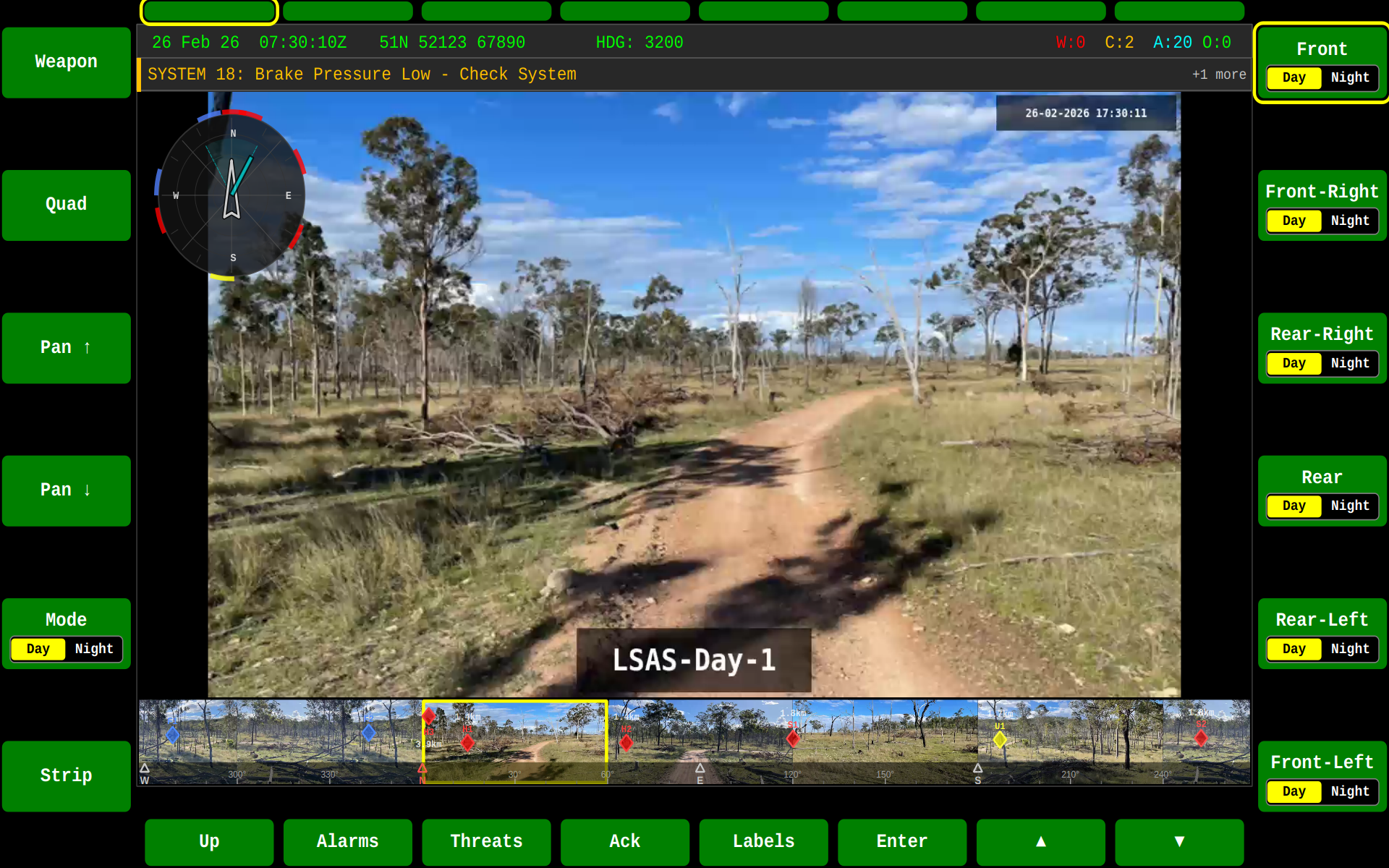
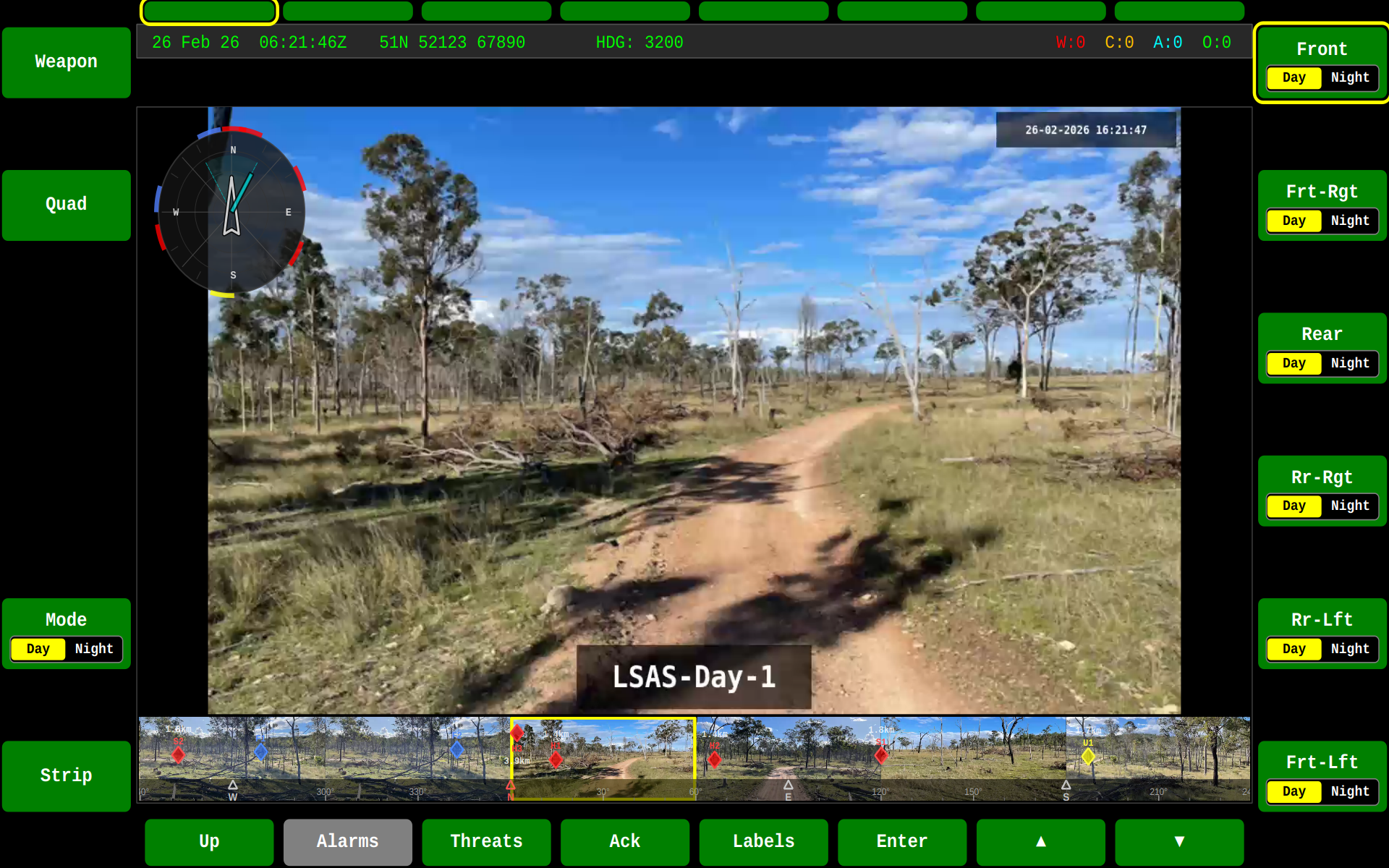
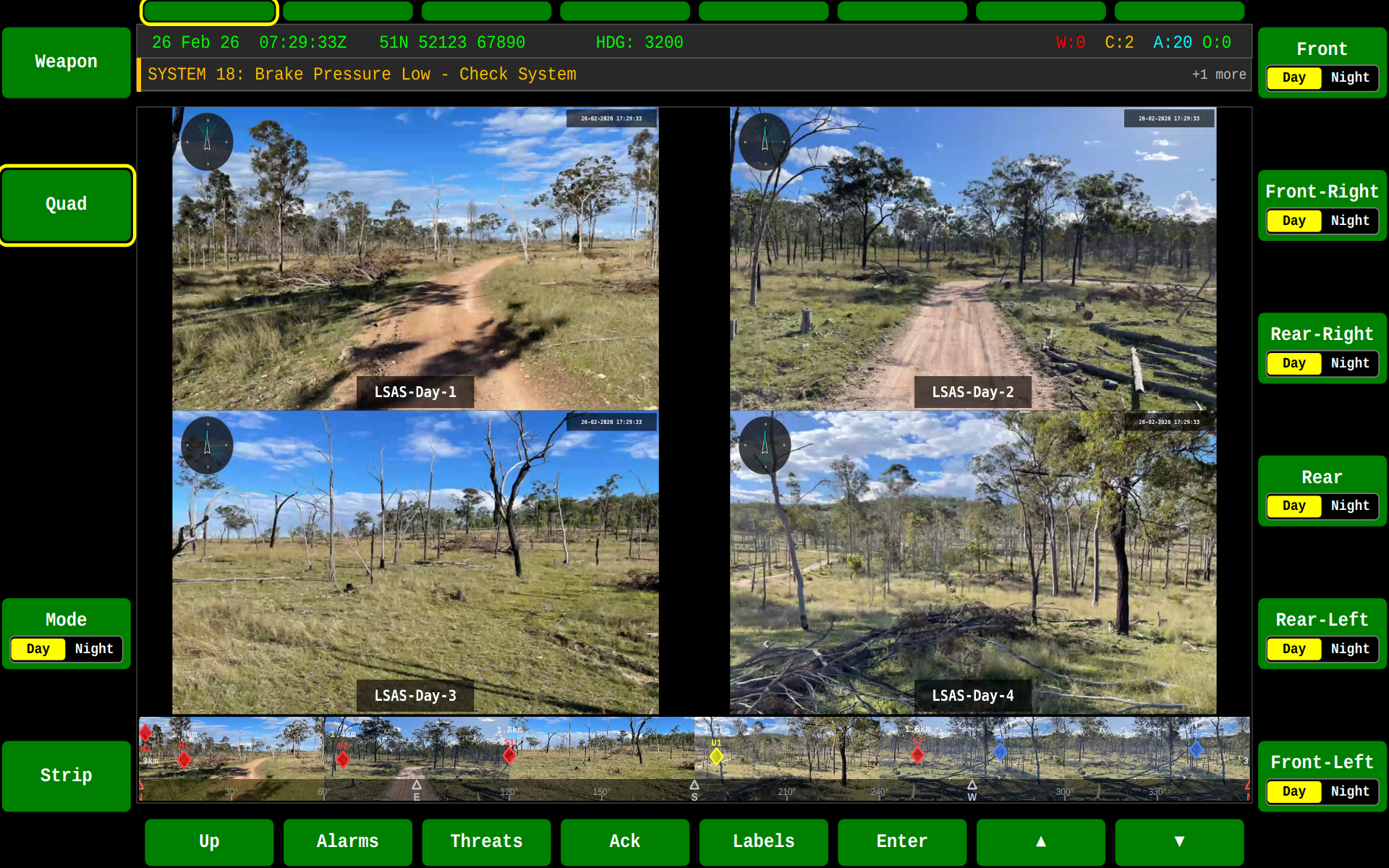
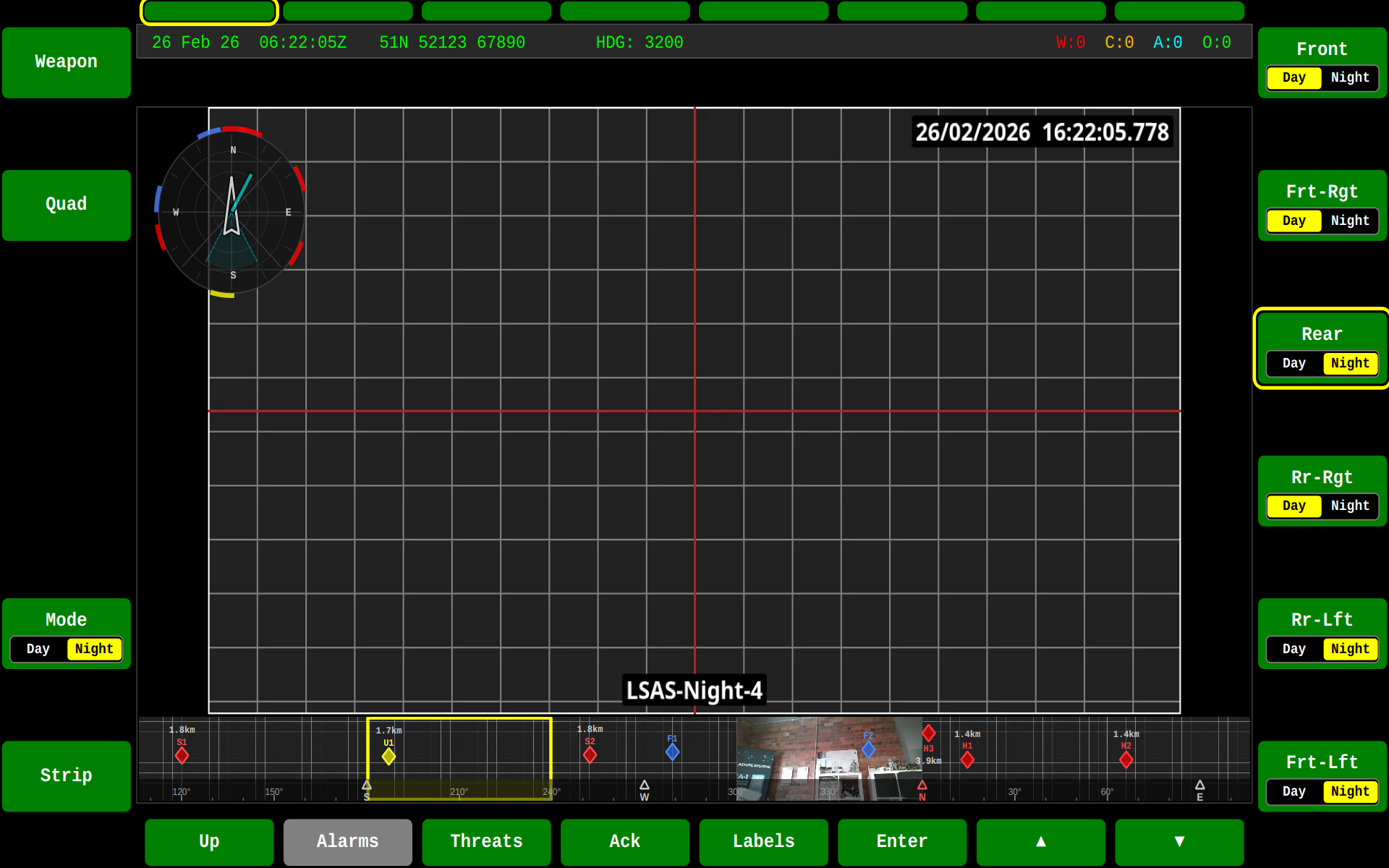
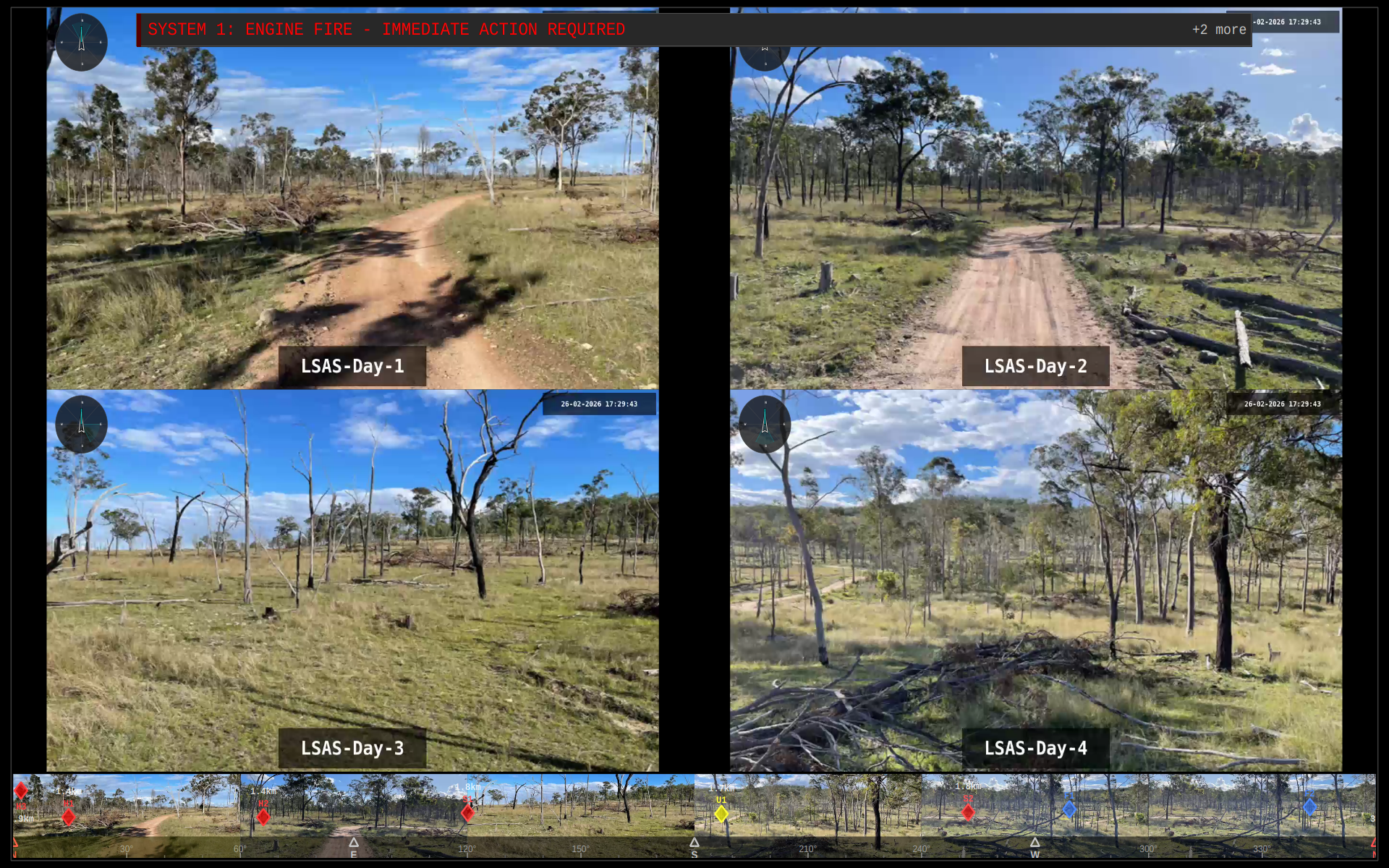
The Situational Awareness screen supports multiple camera layout configurations:
| Single Camera | Camera with Strip |
|---|---|
 |
 |
| Quad Day | Quad Night | Quad Fullscreen |
|---|---|---|
 |
 |
 |
DEF Screen
The Defence (DEF) functional area provides a comprehensive threat management display integrating radar, tabular threat data, and LSAS strip threat overlays.
Radar View
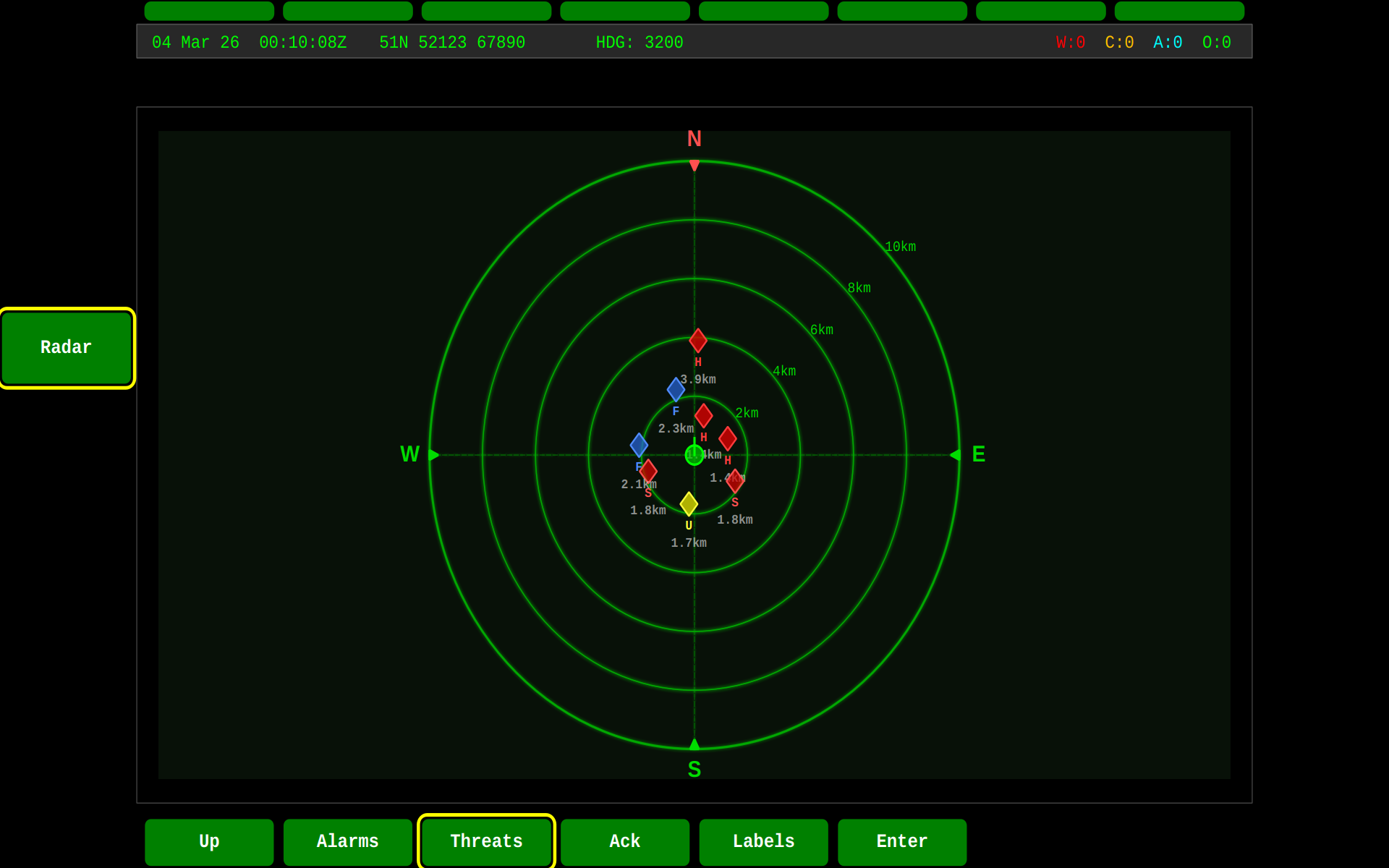
The DEF screen features a top-down Radar View widget that displays a plan position indicator (PPI) centred on the vehicle's position. Threats appear as colour-coded diamond markers positioned by bearing and range:
- Range rings at 2 km intervals out to 10 km
- N/S/E/W compass markers rotating with vehicle heading
- Threat diamonds colour-coded by hostility (Red = Hostile, Orange = Suspect, Yellow = Unknown, Blue = Friendly)
| Radar View | Radar Zoom |
|---|---|
 |
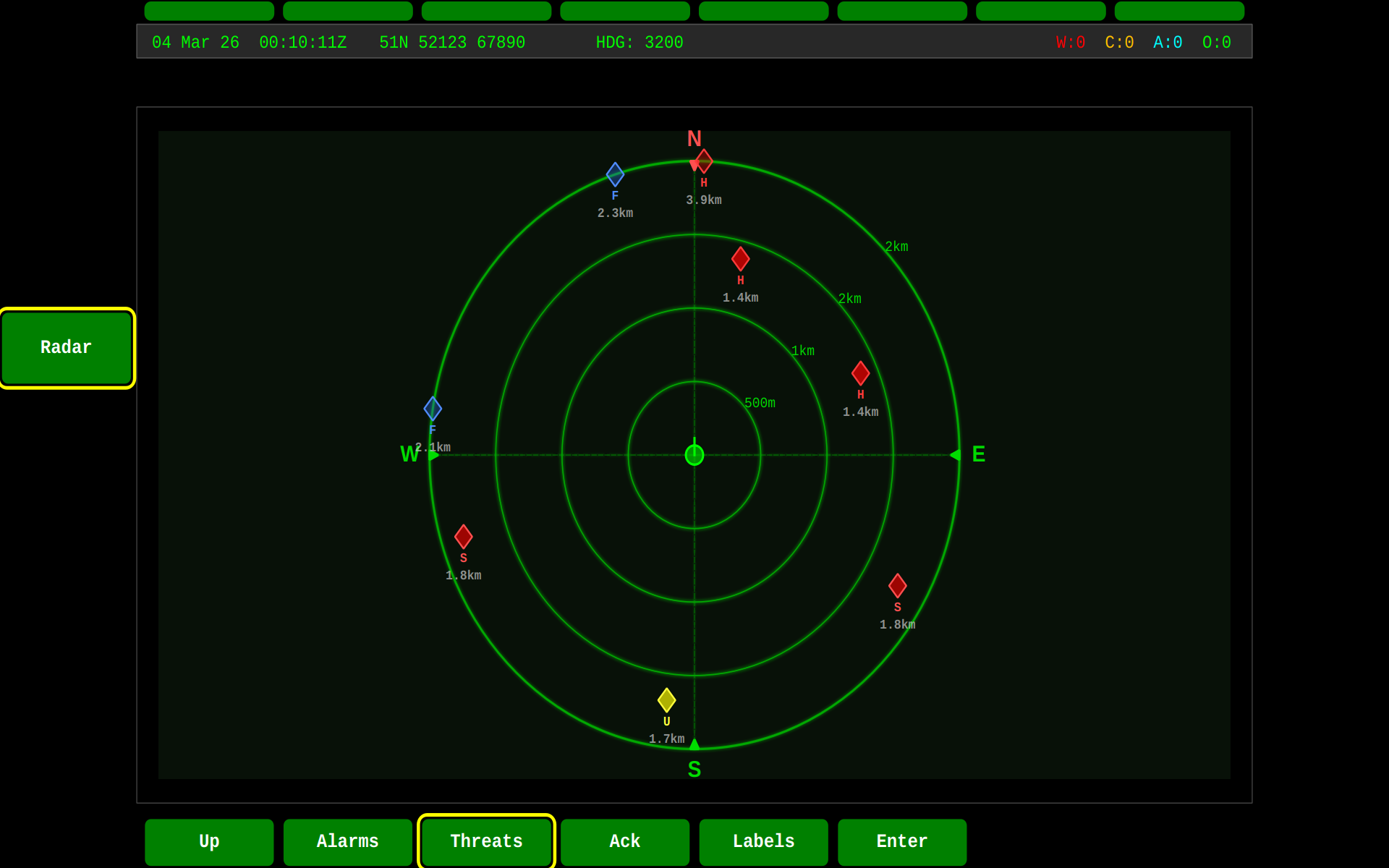 |
Press F2 on the DEF screen to toggle between the standard radar view and a zoomed-in view for closer inspection of nearby threats.
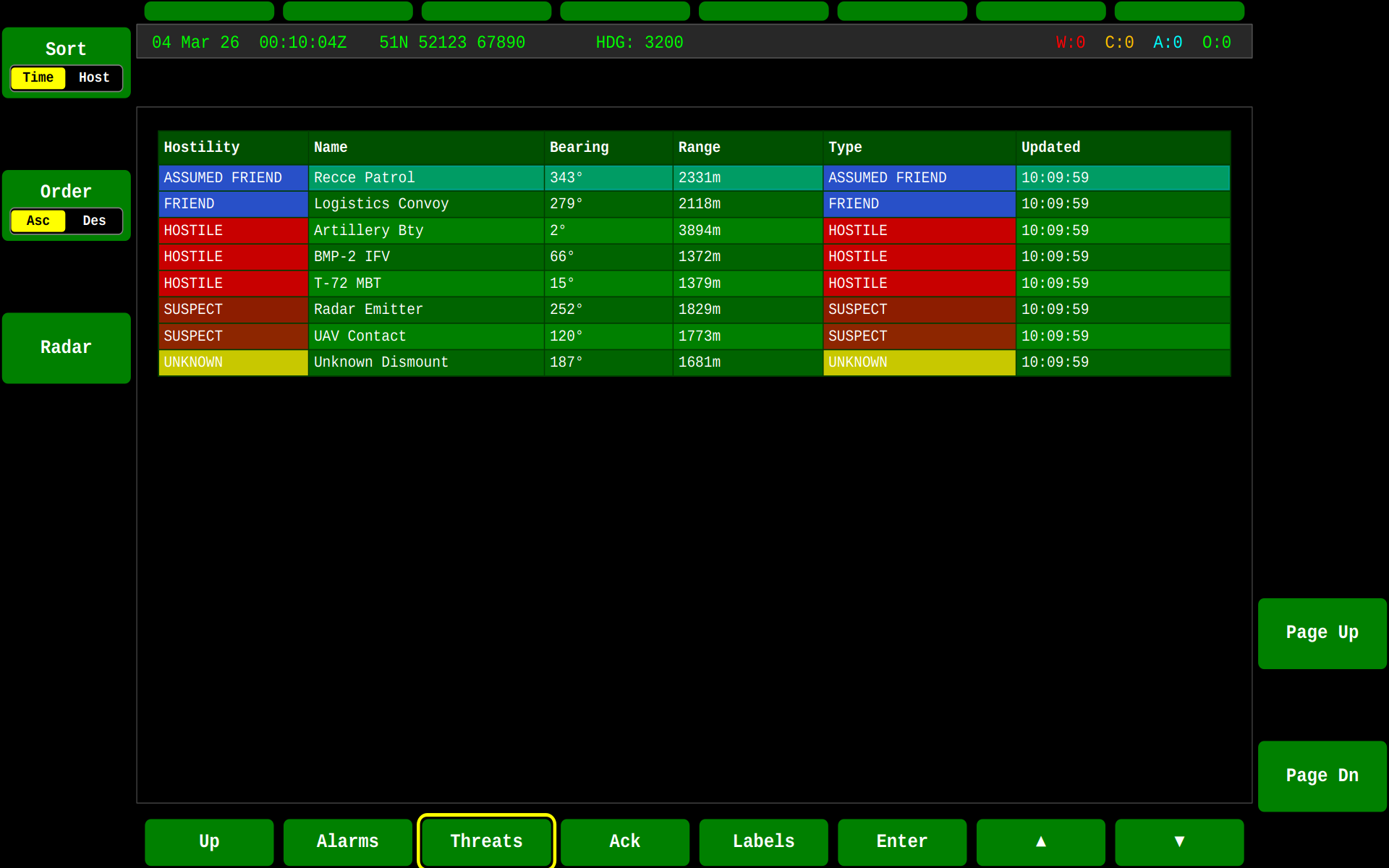
Threat Table
The tabular view lists all tracked battlespace objects with their hostility classification, bearing, range, and last update time:
LSAS Strip Threat Integration
When the LSAS (Local Situational Awareness System) camera strip is visible, threat indicators are overlaid directly onto the camera thumbnails. Each threat diamond appears at the bearing position on the corresponding camera view, giving the operator an immediate visual correlation between the camera feed and detected threats. Closer threats appear lower on the thumbnail (near the direction bar), while distant threats appear near the top.
Threat Lifecycle
Threats are managed via the DDS Battlespace Objects topics defined in DEF STAN 23-009:
- Detection — A
C_Battlespace_Objectmessage is received with hostility classification (Hostile, Suspect, Unknown, Friendly, Neutral, Pending) - Tracking —
C_Object_Locationupdates provide real-time latitude/longitude; the HMI calculates bearing and range relative to the vehicle's own position - Reclassification — Hostility can be updated at any time; the radar, PPI, LSAS strip, and threat table all update in real time
- Removal — A
C_Battlespace_Object_CP_objectDeletedmessage removes the threat from all displays
This lifecycle drives updates across all threat displays simultaneously: the PPI widget overlay on the SA screen, the DEF screen radar and table, and the LSAS strip threat diamonds.
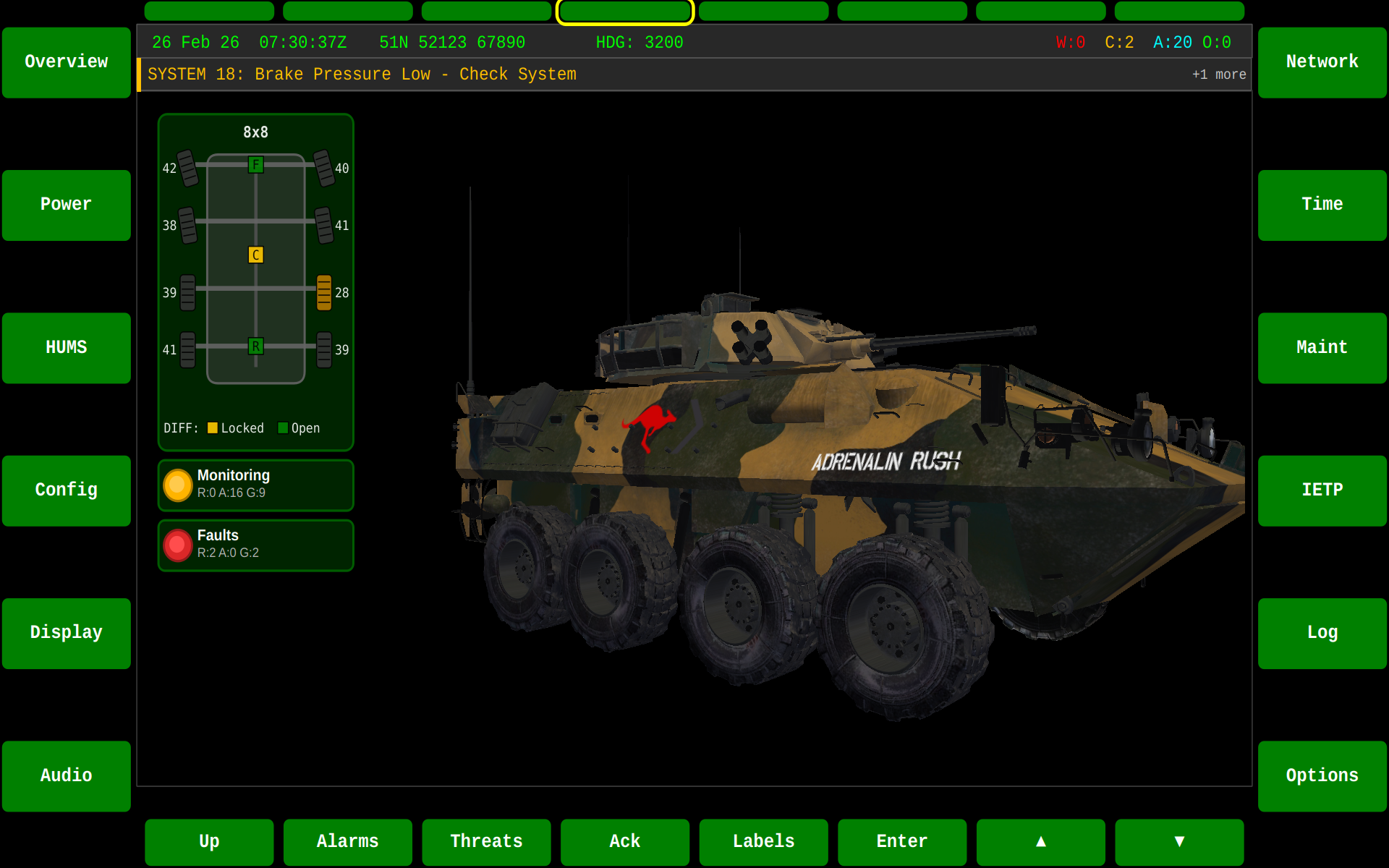
SYS Screen
The System screen displays the vehicle status with an interactive 3D model and system information:
Keyboard Controls
Global Controls
| Key | Action |
|---|---|
F1-F8 |
Switch to functional area (SA, WPN, DEF, SYS, DRV, STR, COM, BMS) |
F11 |
Toggle fullscreen mode |
L |
Toggle label visibility |
Escape |
Exit fullscreen / Close alarms view |
Alarms View Controls
| Key | Action |
|---|---|
A |
Show/hide alarms table |
F1 |
Toggle sort by Time/Category |
F2 |
Toggle sort Ascending/Descending |
Up/Down |
Navigate alarm list |
Enter |
Acknowledge selected alarm |
DRV Screen Controls
| Key | Action |
|---|---|
F12 |
Toggle RPM gauge mode (Full/Compact) |
External Applications
The HMI supports third-party external applications on three extensible screens:
- WPN (F2) - Weapon system applications
- STR (F6) - Set To Role applications
- BMS (F8) - Battlespace management / mapping applications
When no external application is connected, these screens display "Waiting for External Application".
Running with BMS
To run the HMI with the BMS (Battlespace Management System) external application:
# Terminal 1: Start the registry service
./build/bin/gva-qt6-registry --domain=0 &

# Terminal 2: Start the HMI
./build/bin/gva-qt6-hmi --area=8

# Terminal 3: Start the BMS application
./build/bin/gva-qt6-app-bms --domain=0
See the BMS Application documentation for more details.
Running with Shield Protocol
# Terminal 1: Start the registry service
./build/bin/gva-qt6-registry --domain=0 &

# Terminal 2: Start the HMI on WPN screen
./build/bin/gva-qt6-hmi --area=2

# Terminal 3: Start the Shield Protocol game
./build/bin/gva-qt6-app-shield-protocol --domain=0
See the Shield Protocol documentation for more details.
DDS Integration
The HMI integrates with the GVA DDS services for:
Alarms
Real-time alarm display from the GVA Alarm Service. Alarms are categorized by severity:
- Warning (Red) - Critical conditions requiring immediate attention
- Caution (Amber) - Important conditions requiring attention
- Advisory (Cyan) - Informational messages
- Override (Green) - System override status
The status bar displays alarm counts. Press A to view the full alarms table.
Registration
The HMI registers with the GVA Registry Service to:
- Announce itself as a display device
- Receive third-party session registrations
- Manage button label updates from external applications
Display Extension Service
External applications use the Display Extension Service to:
- Register their session with the HMI
- Stream rendered frames to extensible screens
- Receive touch/mouse events forwarded from the HMI
- Update soft key (bezel button) labels
Architecture
┌─────────────────────────────────────────────────────────────┐
│                      GVA HMI Window                         │
├─────────────────────────────────────────────────────────────┤
│  ┌─────────────────────────────────────────────────────┐   │
│  │              Main Display Area                       │   │
│  │  ┌─────────────────────────────────────────────┐    │   │
│  │  │  Functional Area Content                     │    │   │
│  │  │  - SA: Video + PPI Widget                    │    │   │
│  │  │  - SYS: 3D Vehicle + Wheels Widget           │    │   │
│  │  │  - DRV: Camera + Speed/RPM Widgets           │    │   │
│  │  │  - BMS/WPN/STR: External App Frame           │    │   │
│  │  └─────────────────────────────────────────────┘    │   │
│  └─────────────────────────────────────────────────────┘   │
│  ┌─────────────────────────────────────────────────────┐   │
│  │  Status Bar: DTG | Grid Ref | Heading | Alarms      │   │
│  └─────────────────────────────────────────────────────┘   │
│  ┌─────────────────────────────────────────────────────┐   │
│  │  Function Keys (Bezel Buttons): F1-F20               │   │
│  └─────────────────────────────────────────────────────┘   │
└─────────────────────────────────────────────────────────────┘
Building
The HMI is built as part of the main LDM SDK build:
Build Options
| CMake Option | Description |
|---|---|
HAS_MULTIMEDIA |
Enable Qt Multimedia for video playback |
HAS_OPENGL_VEHICLE |
Enable 3D vehicle rendering on SYS screen |
HAS_DDS_ALARMS |
Enable DDS alarm and registration integration |
LICENCE_CHECK_ENABLED |
Enable runtime licence validation |
Related Documentation
- External Applications Service - DDS interface for third-party apps
- BMS Application - Example mapping application
- Shield Protocol - Example game application
- Functional Areas - Detailed functional area reference
- Widgets - HMI widget components