External Applications
The GVA architecture supports integration of external applications through a standardised DDS-based interface. This enables third-party software to operate within the vehicle environment while maintaining system integrity.
Overview
External applications can:
- Display content in the HMI control area
- Receive user input via soft keys
- Access GVA services (Registration, Alarms, UACM)
- Communicate with other systems via DDS
Two Approaches to External Application Integration
The UK MOD's Generic Vehicle Architecture (GVA) standard, through DEF STAN 23-009 and the Land Data Model (LDM), defines a Display Extension Service Specification (v1.1, February 2024) — a DDS-based protocol allowing third-party applications to inject widgets into a host HMI without modifying its source code.
There are two fundamentally different approaches to implementing this integration:
Traditional Approach: Co-located Widget Sessions
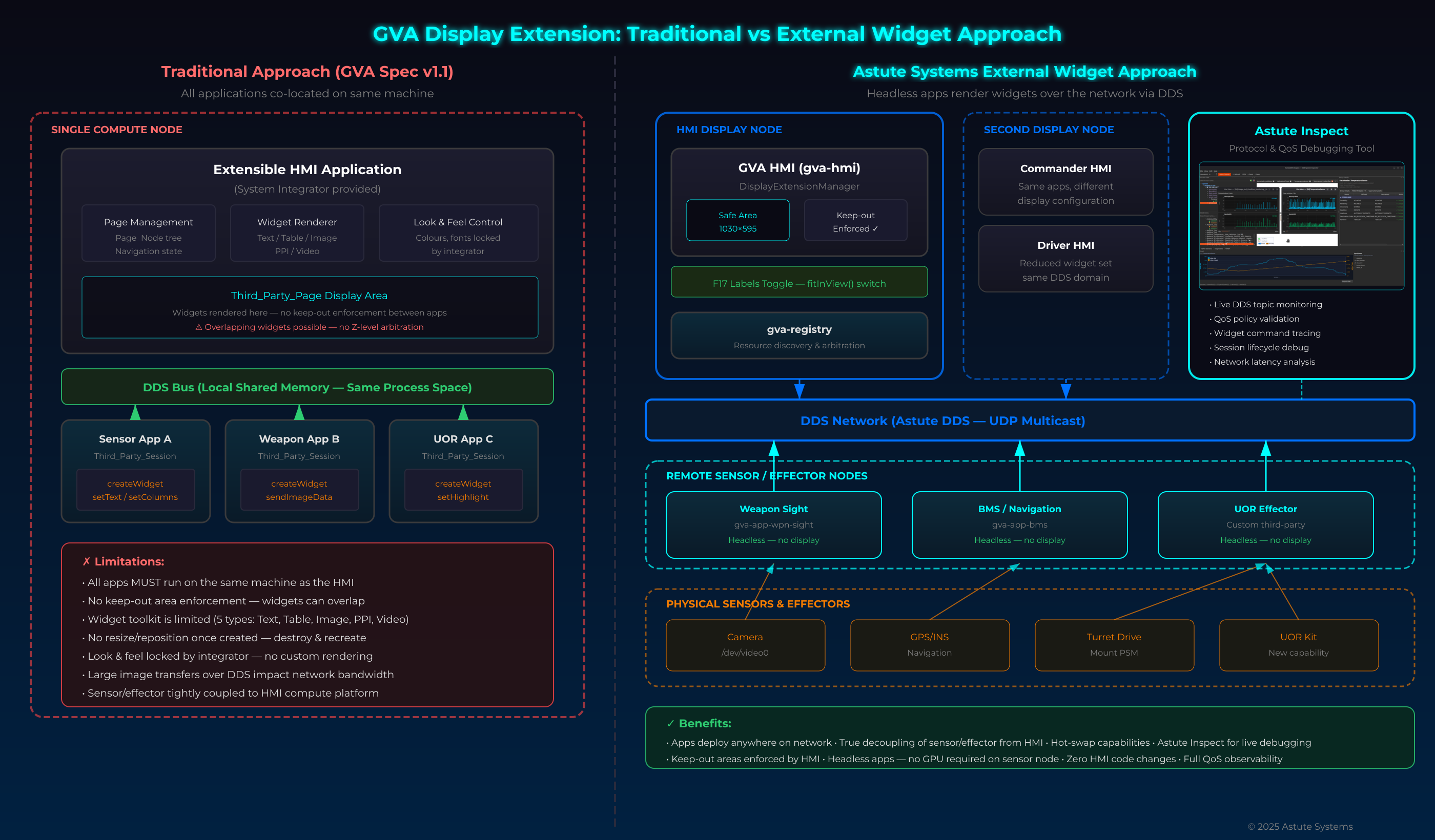
The GVA Display Extension specification defines a layered architecture where third-party applications coexist on the same compute node as the HMI. They communicate via DDS shared-memory transport, publishing createWidget, setText, or sendImageData commands. The HMI subscribes to these messages, renders the requested widgets, and fires user interaction events back.
While this achieves interface decoupling via message passing, it introduces practical constraints:
- Co-location required — Large image transfers rely on shared-memory transport, meaning apps run on the same machine as the HMI
- No spatial arbitration — Multiple sessions can create overlapping widgets without enforcement
- Limited widget types — Five fixed types (Text, Table, Image, PPI, Video) with no custom rendering
- HMI lifecycle coupling — If the HMI restarts, all sessions are lost and must re-register
Astute Systems Approach: True Network Decoupling
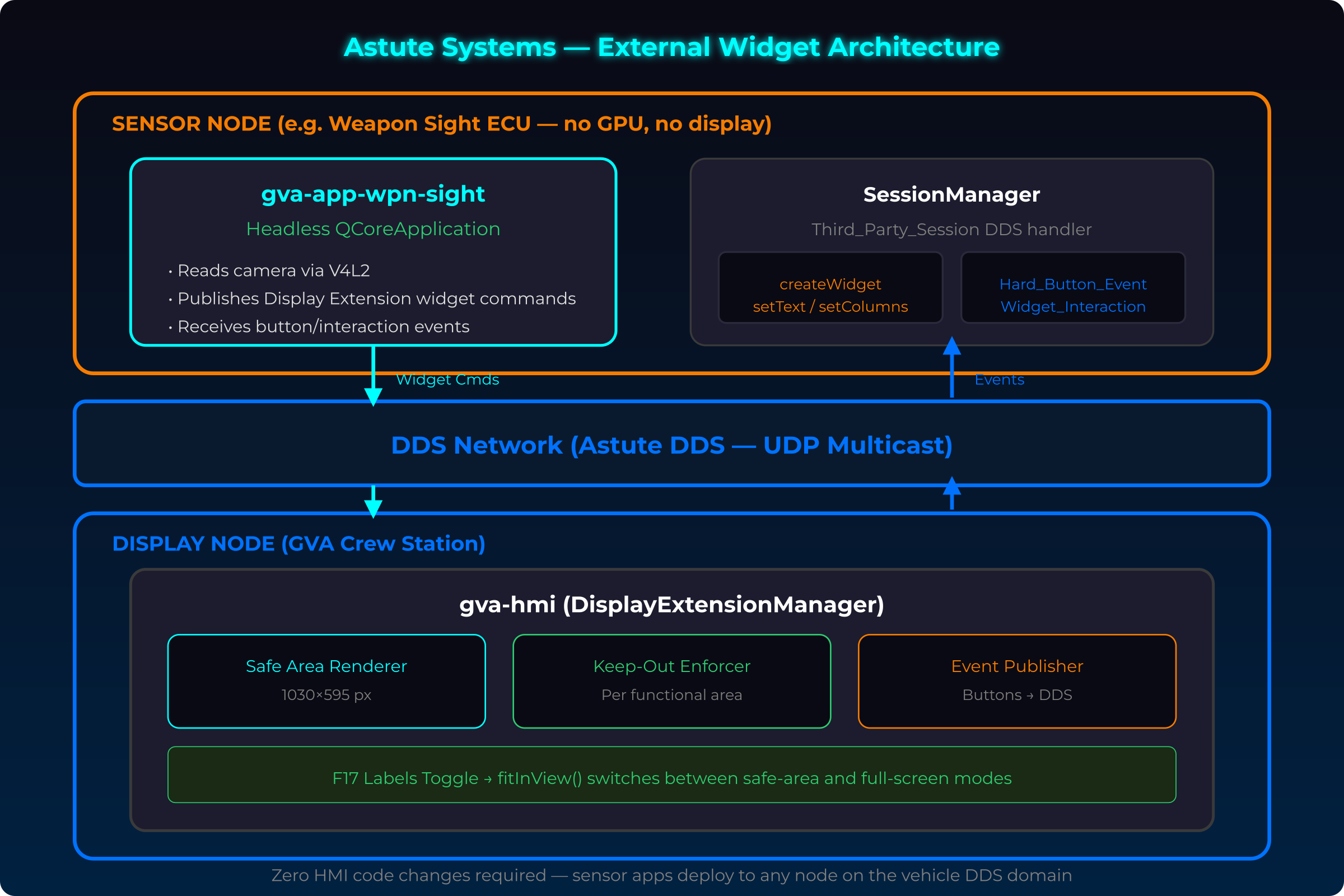
The ATLAS HMI implements the full Display Extension protocol with a critical architectural difference: third-party applications are genuinely headless services communicating over the network via UDP multicast, not co-located processes sharing compute.
Key advantages:
- Deploy anywhere — Sensor apps run on their own embedded compute (Cortex-A class), no GPU required
- Keep-out enforcement —
DisplayExtensionManagerallocates screen real estate per functional area, preventing widget overlap - Hot-swap capabilities — Add/remove sensors by connecting/disconnecting nodes, zero HMI code changes
- Multi-display support — One headless app serves Commander, Gunner, and remote displays simultaneously
- F17 integration — The HMI transparently handles label toggle zoom without app awareness
| Metric | Traditional | Astute External Widgets |
|---|---|---|
| Adding a new sensor display | HMI rebuild + re-certification | Deploy headless app — zero HMI changes |
| UOR integration timeline | 6–18 months | Days to weeks |
| Sensor node hardware | Requires GPU + display stack | Headless — MCU/SBC class sufficient |
| Multi-crew-station support | Separate app per display | Single app serves all displays |
| Widget isolation | None — overlaps possible | Keep-out enforced per functional area |
| Network topology | Same machine mandatory | Any node on vehicle DDS domain |
Comparison Diagram
The following diagram compares the traditional monolithic approach (left) against the Astute Systems external widget architecture (right), including the Astute Inspect debugging tool:
Architecture Detail
This diagram shows the DDS network fabric and how headless applications communicate with the HMI via Astute DDS:
Integration Architecture
Message Sequence
Application Lifecycle
Display Rendering
width, height,
timestamp DDS->>HMI: Receive DisplayData HMI->>GPU: Execute draw commands GPU->>GPU: Clear control area loop For each command GPU->>GPU: Parse command alt DrawRect GPU->>GPU: Draw rectangle else DrawText GPU->>GPU: Render text else DrawImage GPU->>GPU: Blit image else DrawLine GPU->>GPU: Draw line end end GPU->>HMI: Frame complete HMI->>HMI: Swap buffers
Soft Key Handling
key[1]="ZOOM OUT"
key[2]=""
key[3]="EXIT" DDS->>HMI: Update key labels HMI->>HMI: Display labels Note over Op: Operator presses key Op->>HMI: Press Soft Key 1 HMI->>DDS: Publish KeyEvent Note right of HMI: keyId=1,
state=PRESSED DDS->>App: Receive KeyEvent App->>App: Handle zoom out App->>DDS: Update display HMI->>DDS: Publish KeyEvent Note right of HMI: keyId=1,
state=RELEASED DDS->>App: Key released
External Application Interface
Display Data
| Field | Type | Description |
|---|---|---|
applicationId |
string | Unique application ID |
width |
int | Display width in pixels |
height |
int | Display height in pixels |
commands |
list | Draw command list |
timestamp |
datetime | Frame time |
Draw Commands
| Command | Description |
|---|---|
| CLEAR | Clear display area |
| RECT | Draw rectangle outline |
| FILLED_RECT | Draw filled rectangle |
| LINE | Draw line |
| TEXT | Draw text |
| IMAGE | Draw image/sprite |
| ARC | Draw arc |
| POLYGON | Draw polygon |
Soft Key Configuration
| Field | Type | Description |
|---|---|---|
applicationId |
string | Application ID |
keys |
array[6] | Key label strings |
enabled |
array[6] | Key enabled flags |
Key Events
| Field | Type | Description |
|---|---|---|
applicationId |
string | Target application |
keyId |
int | Key number (0-5) |
state |
enum | PRESSED, RELEASED |
timestamp |
datetime | Event time |
Application Types
Information Display
Applications that display static or slowly-changing information:
- Map overlays
- System status displays
- Documentation viewers
- Reference tables
Interactive Tools
Applications requiring user input:
- Configuration editors
- Diagnostic tools
- Planning aids
- Communication interfaces
Games and Training
Applications for operator training and entertainment:
- Simulation games
- Training scenarios
- Skill development tools
Best Practices
Registration
- Register immediately - Don't delay registration
- Unique application ID - Use organisation prefix
- Meaningful name - Operators see this in menus
Display
- Respect boundaries - Stay within control area
- Consistent styling - Match GVA visual language
- Efficient rendering - Minimise draw commands
- Handle resize - Support different display sizes
Input Handling
- Clear key labels - Max 8 characters
- Disable unused keys - Set enabled=false
- Responsive feedback - Update display quickly
Resource Management
- Clean shutdown - Deregister properly
- Memory efficiency - Don't leak resources
- CPU considerate - Yield when inactive
Troubleshooting
Application Not Listed
- Check registration is published
- Verify systemType is APPLICATION
- Ensure HMI is receiving registrations
Display Not Updating
- Verify application is active
- Check DisplayData topic
- Ensure timestamp is updating
Keys Not Responding
- Check KeyEvent topic subscription
- Verify applicationId filter
- Ensure SoftKeyConfig is published